 Sideplay
Your iPhone on your Android TV.
Sideplay turns your Android TV or Google TV into an AirPlay receiver. Mirror your screen, or send videos and music from your iPhone or iPad.
Free and open source. No ads, no account, no tracking.
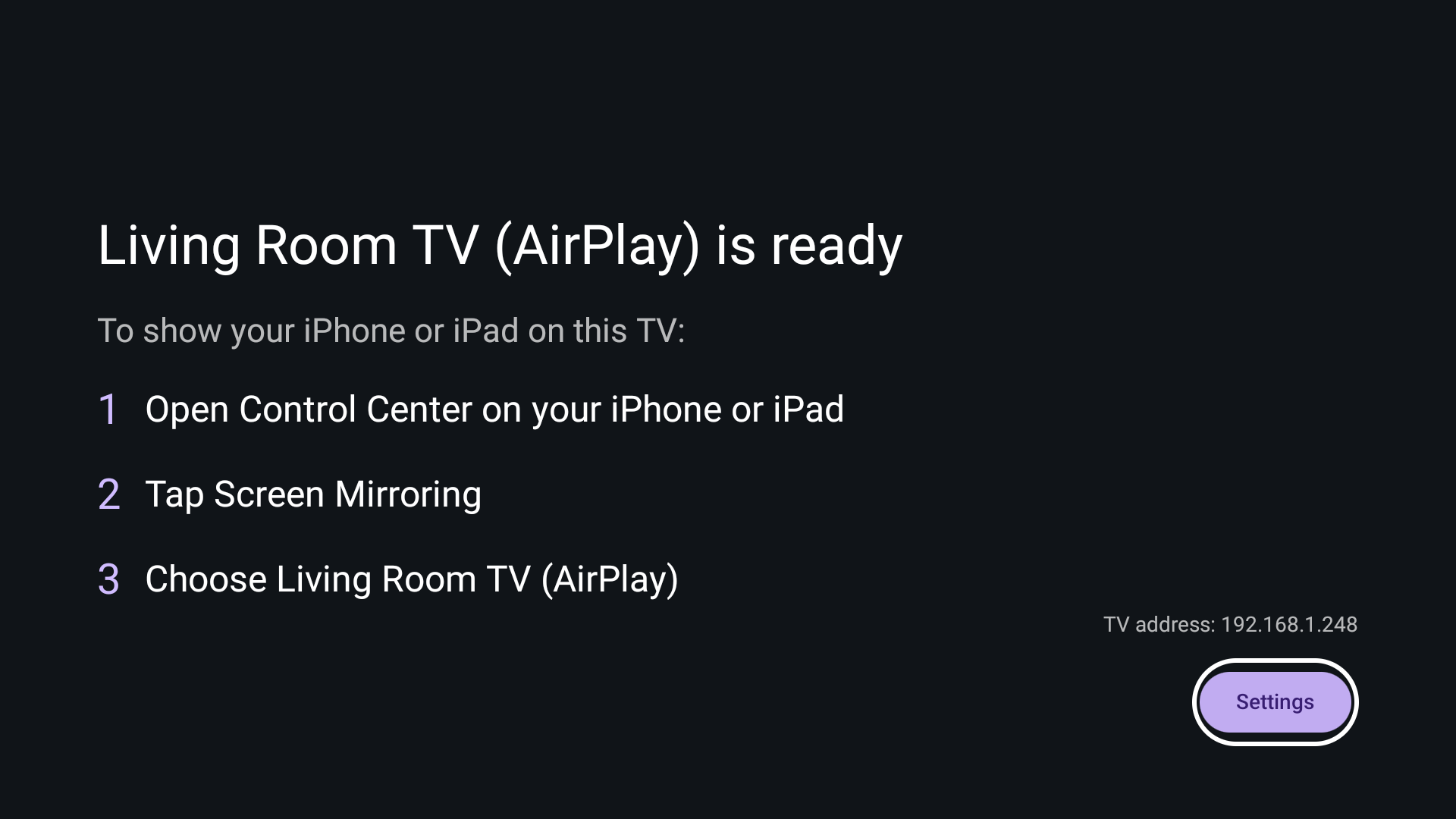
Connect in three steps
Your phone and TV need to be on the same Wi-Fi network.
Open Sideplay on the TV
It shows the name your iPhone will see, like "Living Room TV (AirPlay)".
Open Control Center
On your iPhone or iPad, open Control Center and tap Screen Mirroring.
Choose your TV
Your screen appears on the TV. In apps like YouTube or Photos, tap the AirPlay icon to send just the video.
What it does
Screen Mirroring
Show your whole iPhone or iPad screen on the TV, in portrait or landscape.
AirPlay video
Send a video from YouTube, Photos or Safari. It plays on the TV while your phone stays free.
Music
AirPlay audio plays through the TV with the album art and track title.
Optional code
Turn on an on-screen code so only people in the room can connect.
Ready when the TV is
Sideplay can start with the TV, so it's there whenever you want it.
Private by design
Everything stays on your home network. Read the privacy policy.
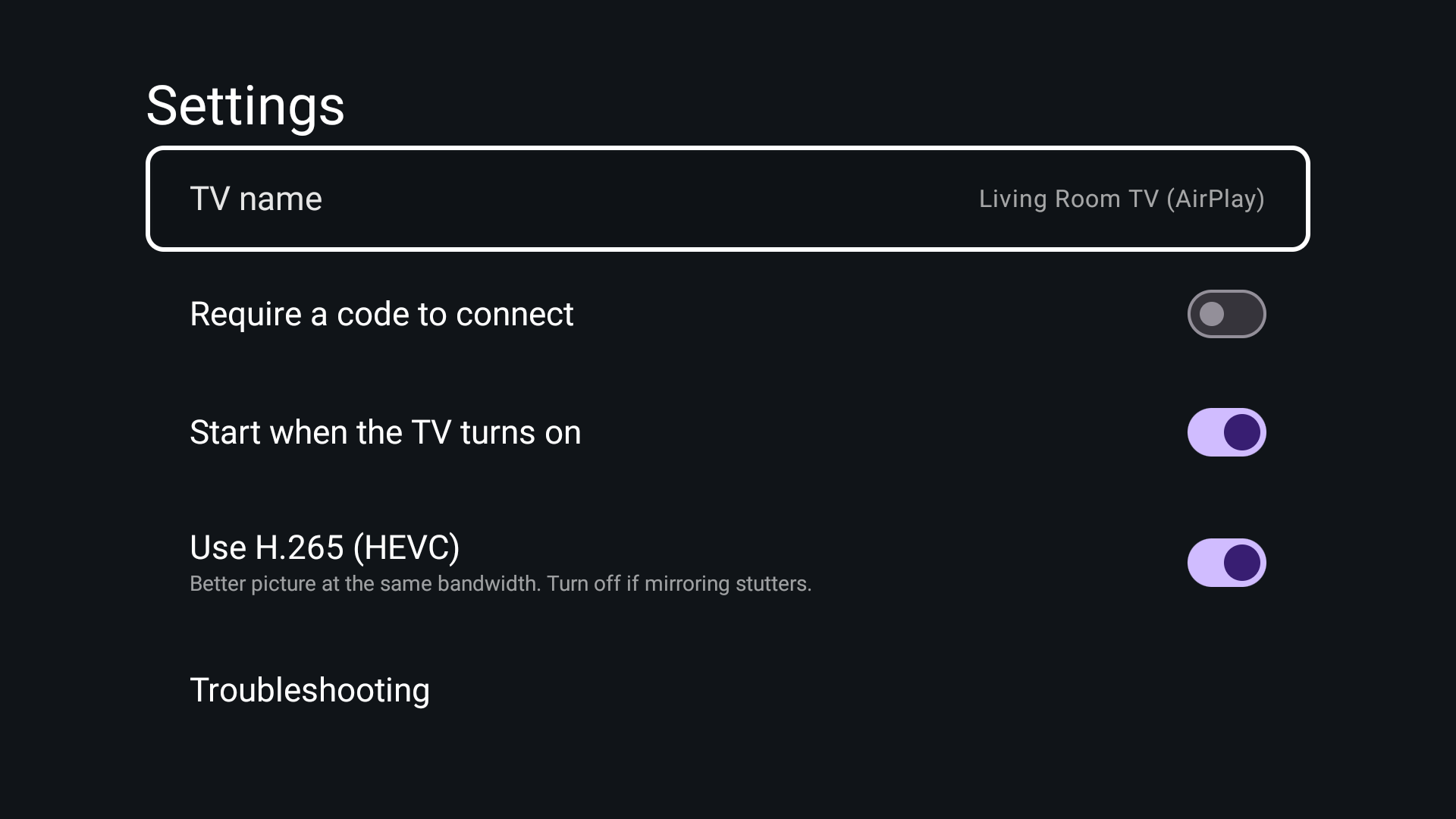
Simple settings
Rename the TV, require a code to connect, start with the TV, and switch video formats if mirroring stutters.
Free and open source
Sideplay is free software under the GPL-3.0 licence, built on UxPlay and jqssun/android-airplay-server. Read the source on GitHub.